4.9. Administration Users
4.9.1. About Admin Users
Unlike Gateway Users, Admin Users have access to system-level and partition-level configuration settings.
Depending on their assigned role, they can manage core system functions, configure partitions, or view configuration data in read-only mode.
A special role, the super administrator, has full control over central system functions and is responsible for creating and managing partitions.
Admin users can have one of the following roles:
Super-Admin
Partition Admin
Partition Read-Only
4.9.2. Two-Factor Authentication
In addition to password authentication, suSSHi Chef allows you to use one-time password (OTP) authentication. An OTP is an automatically generated numeric or alphanumeric string used to authenticate a user for a single transaction or login session, typically in addition to a static password. OTP is more secure than a static password, especially a user-created password, which can be weak and/or reused across multiple accounts. OTP improves security because the codes are constantly changing and can only be used once.
Time-based (RFC 6238, TOTP) and HMAC-based (RFC 4226, HOTP) are the two main open OTP algorithms, which
both generate a numeric code, usually with 6 or 8 digits.
In suSSHi Chef, TOTP is used to enable two-factor authentication (2FA).
It requires an application that calculates the correct OTP, which changes every 30 seconds.
There are a number of apps available for your smartphone operating system.
One of the most famous is the very simple and limited Google Authenticator.
We recommend using an OTP app that is capable of locking the store with another password or PIN.
Each user receives an individual, random secret key, which is synchronized with a suitable OTP application on the smartphone. Synchronization takes place by presenting a QR code image to the user and allowing them to scan the QR code with an OTP app installed on their smartphone.
4.9.2.1. Activation
To enable OTP authentication, navigate to System / Preferences and select OATH-TOTP as the authentication method.
Note
Authentication Realm is a label used to uniquely distinguish between OTP profiles.

After updating the preferences, you will be prompted to scan your personal OTP secret, which will be displayed as a QR code.
Warning
If you proceed without scanning the QR code, you can no longer log in to suSSHi Chef.
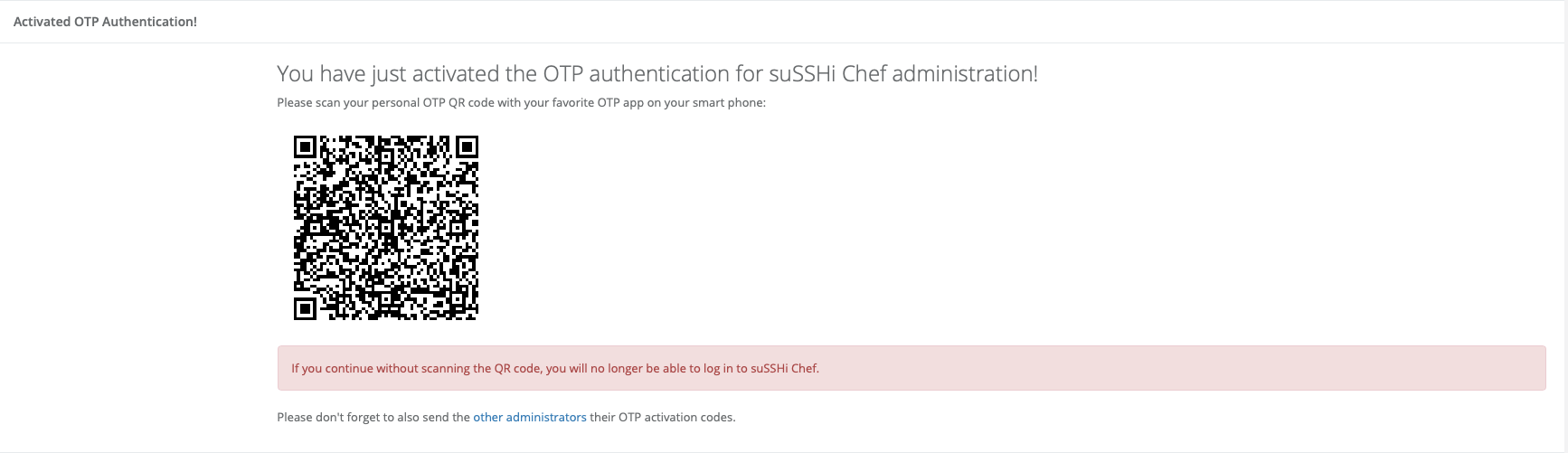
Afterwards, the individual OTP activation codes must be securely distributed to all other administrators to complete the setup of two-factor authentication. Each administrative user must be provided with their personal OTP activation code.
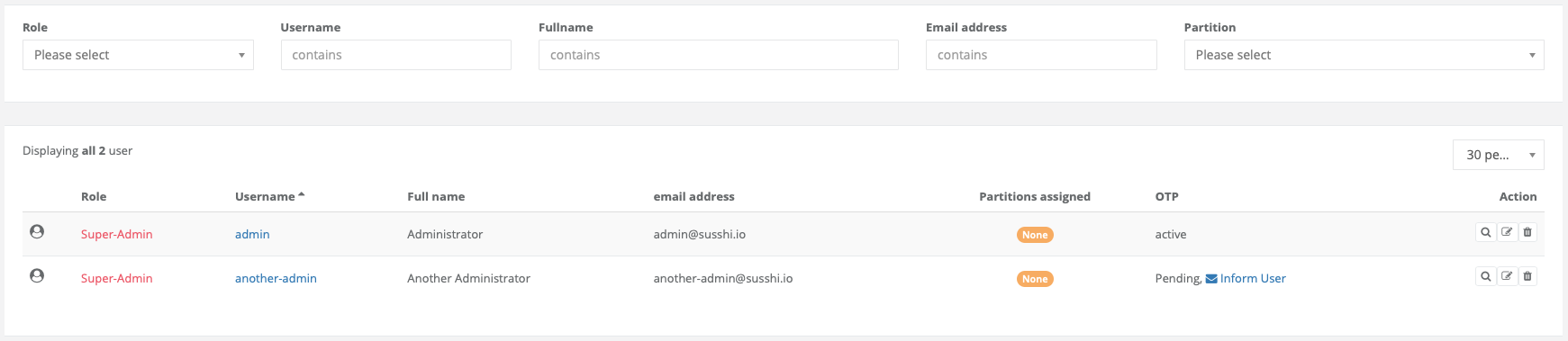
The next time administrators log in, they will be prompted to enter the activation code they previously received.

Finally, a personal OTP secret is created, which can be scanned with the user’s preferred authenticator application.

4.9.3. Admin User Reset
During the initial installation, an administrative user named admin is created automatically.
If access to this account is lost — either due to a forgotten password or missing OTP secret — the administrator credentials can be reset.
This procedure allows you to restore access by setting a new password and, if two-factor authentication is enabled, generating a new OTP activation token. To perform the reset, access to the Docker host running the suSSHi Chef container is required.
Connect to the Docker host and attach to the currently running suSSHi Chef container to execute the reset procedure from within the container environment.
$ docker compose exec susshi-chef bash
Run the following command to reset the admin account or recreate it if the default admin user has been removed in the meantime:
$ rails chef:reset_admin_user
If the command completes successfully, the default password has been restored and a new OTP activation token has been created:
=> *** Reset Admin User ***
=> Password for administrative user 'admin' has been restored to default 'ChangeMe&1234'.
=>   * Please change the password immediately.
=> Role for administrative user 'admin' has been restored to 'Super-Admin'.
=> Your setup is configured for OTP, so OTP secret for 'admin' has been reset, too.
=>   * Please activate OTP with new OTP activation token: 04908259115c12cc56faf5ab649cd07dad6d755ee5a5d7a579fe4eff5cb13e2a.
Access to suSSHi Chef is now available using the default administrative account admin.
4.9.4. Audit Log Encryption Key EE
Audit log encryption allows designated administrator accounts to decrypt encrypted session audit logs produced by suSSHi Gateway. Each administrator who should be able to read encrypted audit logs must have an ED25519 public key configured in suSSHi Chef.
When an Access Profile or Bastion Profile has Log Encryption enabled, suSSHi Gateway fetches the public keys of all eligible administrators and uses them as recipients when encrypting new audit log files. An administrator can decrypt a log file if and only if their key was active at the time the session was recorded.
4.9.4.1. Key Format
The encryption key must be an ED25519 public key in OpenSSH format, as produced by ssh-keygen -t ed25519. The value to enter is the single-line public key string, for example:
ssh-ed25519 AAAAC3NzaC1lZDI1NTE5AAAAIExampleKeyDataHere johndoe
The corresponding private key remains under the administrator’s sole control and is never uploaded to suSSHi Chef.
4.9.4.2. Configuring the Key
Super administrators can set or update the encryption key for any administrator account.
Non-super administrators can manage their own key only if the Allow user to change user key for audit log encryption in their profile option is enabled for their account.
To configure the encryption key, navigate to System / Admin Users, open the account to edit, and enter the public key in the Audit Log Encryption Key field.
Note
Only ED25519 public keys are accepted. Entering a key of a different type or a malformed key will produce a validation error.
4.9.4.3. Self-Service Key Management
When the Allow user to change user key for audit log encryption in their profile option is enabled on an account, that administrator can update their own audit log encryption key from their profile page without requiring super administrator intervention.
This option can only be toggled by a super administrator.
4.9.4.4. Generating a Key Pair
If an administrator does not yet have an ED25519 key pair, one can be generated with the standard OpenSSH tooling:
ssh-keygen -t ed25519 -f ~/.ssh/susshi_audit_key -C "johndoe"
The content of ~/.ssh/susshi_audit_key.pub is the value to enter in suSSHi Chef.
The private key ~/.ssh/susshi_audit_key must be kept secure and is used with susshi-play or susshi-decrypt to read encrypted audit logs.
Note
It is recommended to use a passphrase to protect the private key, which will require entering the passphrase when decrypting logs.
It is also recommended not to use the standard id_ed25519 key pair you usually use for SSH for audit log encryption, but to generate a dedicated key pair for this purpose.
Refer to the Access Profiles and
Bastion Profiles sections for enabling LogEncryption and to the
Tools section for decrypting audit log files.